1.What the security element is
The Law on Fiscalization describes the security element as a hardware or software element containing the taxpayer’s electronic certificate. The fiscal receipt processor (PFR) signs every receipt with that certificate, and from the signature the Tax Administration knows the receipt came from your device and was not altered on the way.
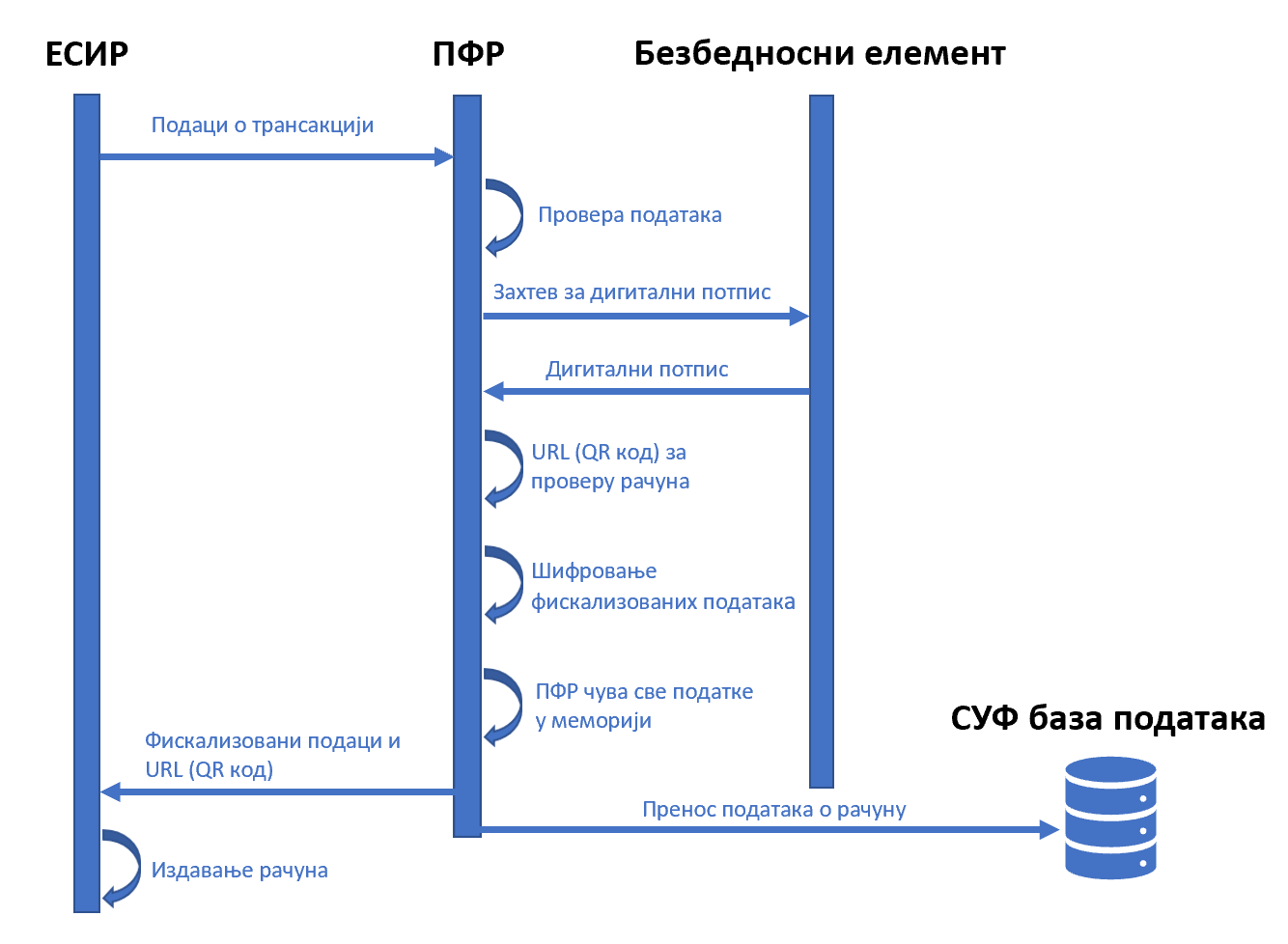
It matters who the element belongs to. It is not bought with a register and not supplied by a software vendor — the Tax Administration issues it to you, the taxpayer, and it is tied to your business and your premises. That is why you request it yourself, through your own ePorezi account, and nobody can do it for you.
Any fiscalization software can issue only test receipts until you add your own element. Real receipts start once the element is in the software.
2.What you need before you start
The whole process is online and does not take long, but prepare everything first:
- a qualified electronic certificate — your own if you are a sole proprietor, or that of the person authorized to represent the company (usually on the ID card chip, with a reader);
- access to the Tax Administration’s ePorezi portal;
- business premises details: address, activity code, floor area and start date;
- if you sell only online — your registered seat address, which then counts as the business premises.
You do not need a shop to sell online. The law explicitly says the registered seat of a business selling online is deemed a retail outlet, so you register the seat as your business premises.
3.Step 1: registering your business premises
An element is always issued for specific premises, so the premises must first exist in the Tax Administration records. The law requires you to submit the data for each premises before you start issuing receipts there, and for each premises separately.
- 1Open the Electronic Fiscalization ServiceLog in to ePorezi with your certificate and open the ESF — Electronic Fiscalization Service — from the list of forms.
- 2Fill in the premises form (PGJO)Enter the premises name, type, address, activity code, floor area and start date. For online sales the type is “Distance selling” and the address is your registered seat.
- 3Sign and submitThe form is signed with the same certificate. Then wait for the Tax Administration to process it — the premises gets its unique code and appears on the list of business premises.
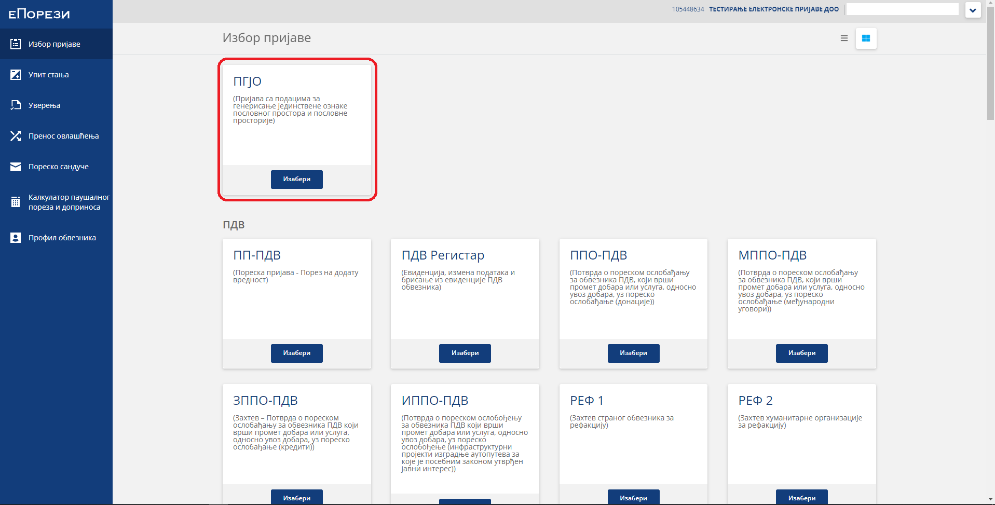
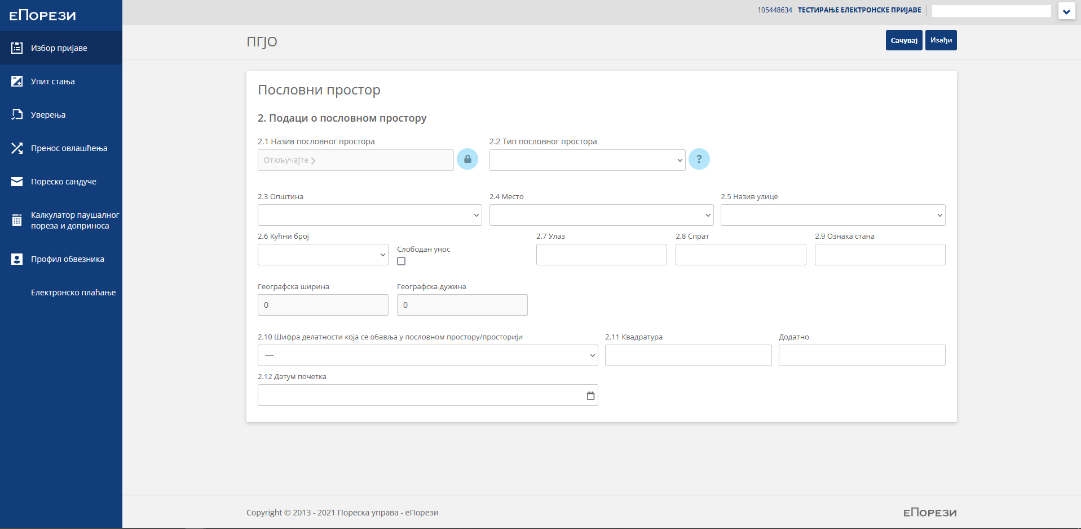
The floor-area field is mandatory, even for online sales. If left empty, the form is rejected as soon as you submit it — correct it, save and sign again.
In the premises name field enter the name of the outlet, e.g. “Online shop”. Do not repeat the company name — it is already on the receipt.
4.Step 2: requesting the security element
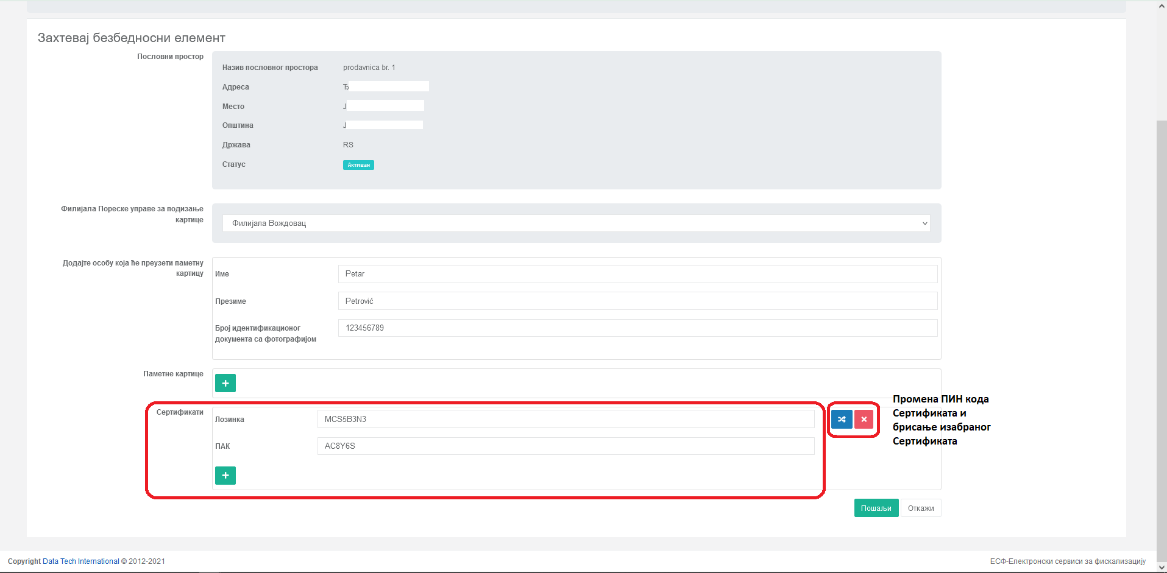
Once the premises has its unique code, request an element for it in the same service (ESF). The element is added under “Certificates”, not under smart cards.
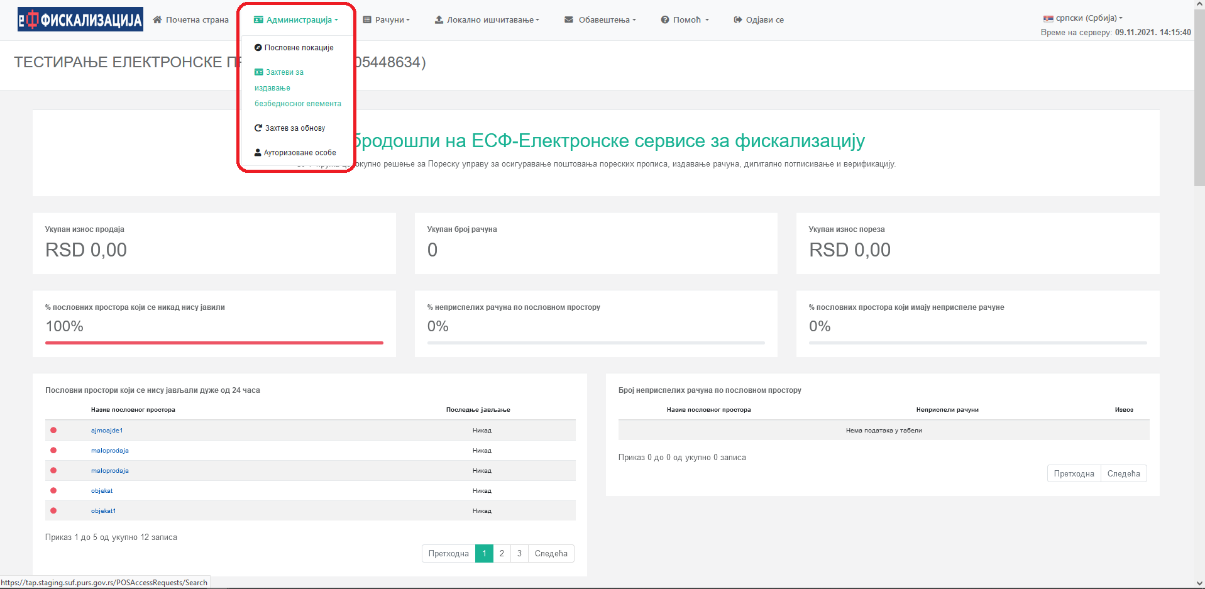
Here you choose the element’s form, which depends on your software. To work through the virtual processor (V-PFR), which runs in the Tax Administration system, you choose a file. A smart card is for devices with their own local processor (L-PFR). FiskalAPI works through the V-PFR, so for it you always request a file.
| Element form | For which device | How it arrives |
|---|---|---|
| File (.p12 / .pfx) | software working through a V-PFR (e.g. FiskalAPI) | in your ePorezi tax inbox |
| Smart card | device with a local processor (L-PFR) | as a physical card |
In the same request, under “Certificates”, the ESF immediately shows the password and PAK for the new element. The password is what the Tax Administration guide calls the PIN: eight characters, letters and digits. A button next to them changes both codes. For a smart card the PIN is a four-digit number. Write down the password and PAK right away — you will need them when connecting the element to your software.
5.Step 3: downloading the element
When the Tax Administration produces the element, it arrives in your ePorezi tax inbox as a ZIP archive with several files. Unpack it: the element itself is the file ending in .p12 or .pfx. The password and PAK are the ones you wrote down from the request in step 2.
Keep the element file, the PIN and the PAK together and safe. Whether you can use the element depends on them.
6.PIN (password) and PAK: the difference
This is where most people get stuck. The PIN, which software also calls the element password, and the PAK look alike — both are short strings of letters and digits — but they do completely different things and cannot replace each other.
| PIN (password) | PAK | |
|---|---|---|
| Purpose | unlocks the element file (.p12/.pfx) | activates the element with the Tax Administration |
| When it is used | every time the software opens the element | when connecting the element to the software |
| If swapped | the file cannot be opened | the element cannot be activated |
If your software reports that the element cannot be read or activated, first check that you have not entered one code instead of the other. That is the cause in most cases.
7.Step 4: adding the element to your software
The last step is to connect the element to the software you issue receipts with. In FiskalAPI this is done in “My account”: choose the element file, enter the password and PAK and click “Connect element”. From then on every API call issues a real fiscal receipt.
Before you go, check that you have completed every step:
Check — tick what you have done
0/6 done8.How long the element is valid and how to renew it
The certificate in the element is time-limited. According to a December 2024 Tax Administration announcement, elements are issued for three years, and an expiry notice arrives in your tax inbox 90 days in advance. After expiry the element cannot be used, so do not leave renewal to the last day.
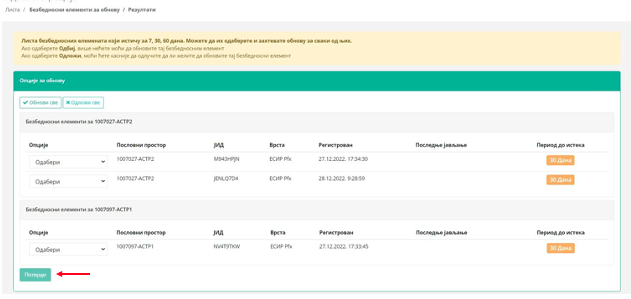
Renewal is simpler than the first request: in the ESF choose “Renew” (or “Renew all”) and the Tax Administration produces a new element before the old one expires. No new application is needed. A new application is filed only when you open new premises, need more devices in existing premises, or the existing element is faulty.
Choose what happened in your case and see what to do:
Choose — the answer appears here.
9.Common mistakes
- An empty floor-area field in the premises form — the form is rejected immediately.
- Requesting the element before the premises is processed — the premises has no code yet.
- Choosing a smart card instead of a file although the software works through a V-PFR.
- Entering the PIN (password) instead of the PAK, or the other way round.
- Leaving the expiry notice unread in the tax inbox.
Frequently asked questions
On the ePorezi portal, through the Electronic Fiscalization Service (ESF). First register the business premises, then request an element for them. The element arrives in your tax inbox.
According to a December 2024 Tax Administration announcement, elements are issued for three years. An expiry notice arrives 90 days in advance, and renewal is done with the “Renew” option in the ESF, without a new application.
The PIN is the element password. It is shown in the element request in the ESF, where it can also be changed: for a file element it has eight characters (letters and digits), for a smart card four digits. The software asks for it when it opens the element.
The PIN, or password, unlocks the element file, and the PAK activates the element with the Tax Administration. They are two different codes, and both appear in the element request under “Certificates”.
Not if you sell online: the law says the registered seat of a business selling online is a retail outlet. You register the seat as business premises, type “Distance selling”.
To work through a V-PFR in the Tax Administration system, as with FiskalAPI, you choose a file. A smart card is for devices with their own processor (L-PFR).
Only the element: upload the new file, password and PAK in “My account”. The API key stays the same, so your shop and integration keep working unchanged.
Sources: Law on Fiscalization (Arts. 2, 3, 7 and 9; Official Gazette RS nos. 153/2020, 96/2021, 138/2022, 80/2026) and the Tax Administration announcement on element renewal of December 2024. ePorezi steps reflect the portal as of 2026.